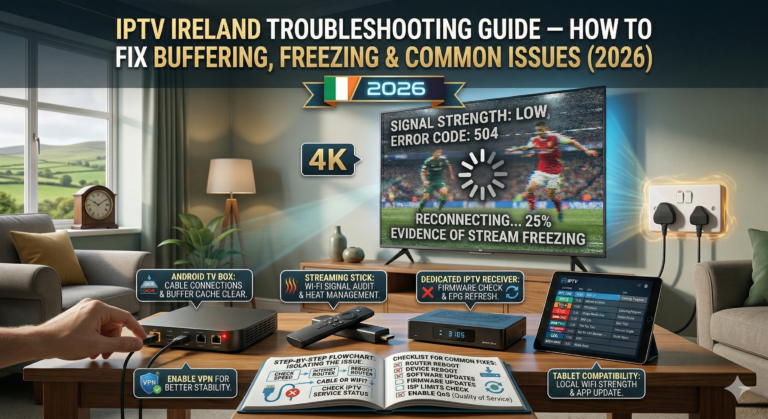
The good news? Nearly every common IPTV issue has a simple fix that takes less than two minutes.
Whether your IPTV subscription is buffering during a live GAA match, channels are freezing at the worst possible moment, or you’re seeing a black screen when you open the app, this comprehensive troubleshooting guide will help you diagnose and resolve the problem quickly. No technical expertise required — just follow the steps below and you’ll be back to smooth streaming in no time.
Buffering and Slow Loading — The Most Common IPTV Subscription Issue
Buffering is by far the most frequently reported issue among IPTV users in Ireland, and it’s almost always caused by your internet connection rather than the IPTV service itself.
The first thing to check is your internet speed. Open a browser on your phone or computer, go to speedtest.net, and run a quick test. For smooth HD streaming, you need at least 10 Mbps download speed. For 4K content — which is what most sports channels stream in — you need a minimum of 25 Mbps. If your speed is below these thresholds, that’s your culprit.
If your speed test shows adequate bandwidth but you’re still buffering, the issue is likely Wi-Fi congestion. This is extremely common in Irish households, especially during evening peak hours when everyone is online. Your IPTV subscription is competing for bandwidth with other devices — phones, tablets, laptops, gaming consoles, and other Smart TV apps all sharing the same Wi-Fi connection.
The single most effective fix for buffering is switching from Wi-Fi to a wired Ethernet connection. A simple Ethernet cable from your router to your streaming device (or a USB Ethernet adapter for Firestick) provides a direct, uncontested connection that eliminates Wi-Fi interference entirely.
If a wired connection isn’t possible, try moving your router closer to your streaming device, or at least ensure there are no thick walls or large appliances between them. Switching your router to the 5GHz Wi-Fi band instead of 2.4GHz can also help significantly — 5GHz offers faster speeds with less interference, though it has slightly shorter range.
Another quick fix is to restart your router. Unplug it from the power, wait 30 seconds, and plug it back in. This clears the router’s memory, refreshes your connection with your ISP, and often resolves buffering issues instantly. Irish broadband providers like Eir, Vodafone, and Virgin Media recommend doing this regularly as part of general maintenance.
Here’s why Wi-Fi causes buffering specifically for IPTV:
Signal interference. Your neighbour’s Wi-Fi, Bluetooth devices, microwave ovens, baby monitors, and even thick stone walls (common in older Irish houses) all degrade Wi-Fi signal quality. Every evening when your neighbours get home and fire up their own routers, interference increases and your streaming quality drops.
Bandwidth sharing. Every device on your Wi-Fi is fighting for the same wireless bandwidth. The kids’ tablets, your partner’s laptop, smart home devices, phones doing background updates — they’re all eating into the bandwidth your TV needs for smooth IPTV.
Distance from router. Wi-Fi signal strength drops dramatically with distance and obstacles. If your router is in the hallway and your TV is two rooms away through two walls, you might be getting a fraction of your actual broadband speed.
Channel Freezing During Live Sports
Channel freezing during live events is usually caused by server demand spikes or temporary bandwidth fluctuations on your connection.
If a specific channel freezes, the quickest fix is to switch to a different broadcast of the same event. Most major sports are available on multiple channels within your IPTV Ireland subscription. If one channel freezes, simply switch to another and you’ll usually find it running perfectly.
If all channels are freezing, try closing your IPTV app completely and reopening it. On Firestick, press and hold the Back button, select Close App, then relaunch. On Smart TVs, exit the app fully and reopen it from the home screen. This forces the app to reconnect to the IPTV Ireland servers and often resolves temporary streaming glitches.
Clearing your IPTV app’s cache is another effective fix for persistent freezing. On Firestick, go to Settings, then Applications, then Manage Installed Applications. Select your IPTV app (e.g., IPTV Smarters Pro) and click Clear Cache. This removes temporary data that can accumulate over time and cause performance issues. Don’t click Clear Data — that will delete your login credentials and you’ll need to re-enter them.
If freezing happens regularly at the same time each day — typically between 7pm and 10pm — your Internet Service Provider may be throttling your connection during peak hours. Our IPTV subscription includes built-in VPN protection specifically to prevent this. Make sure the VPN feature is enabled in your IPTV app settings. If the issue persists, contact our team on WhatsApp and we can provide alternative server connections optimised for your specific ISP.
Black Screen — App Opens But No Picture
A black screen when you select a channel is usually a connection or authentication issue rather than a problem with the channel itself. It looks alarming, but it’s one of the easiest IPTV problems to fix.
First, make sure your IPTV subscription hasn’t expired. If your plan reached its end date, your channels will stop working until you renew.
If your subscription is active, try switching to a different channel and then switching back. Sometimes a single channel’s stream can temporarily drop, and simply changing channels forces the app to reconnect.
On some devices, a black screen is caused by a video codec mismatch. This is most common on older Smart TVs and budget Android boxes. The fix is to change the video player within your IPTV app settings. In IPTV Smarters Pro, go to Settings, then Player, and switch between “Native Player,” “VLC Player,” or “Exo Player.” Try each option until you find the one that works best on your device. For most IPTV users, the VLC or Exo Player options deliver the best compatibility and performance.
If you’re getting a black screen specifically on HD or 4K channels but SD channels work fine, your device may not support the video resolution. This is rare with modern devices but can happen with very old Smart TVs or the original Fire TV Stick (non-4K). In your IPTV app settings, look for a video quality or resolution option and set it to “Auto” or “720p” to see if the picture returns.
No Sound or Audio Out of Sync
Audio issues with your subscription typically fall into two categories — no sound at all, or audio that’s slightly out of sync with the video. Both are fixable.
If you have no audio, first check the obvious — make sure your TV volume isn’t muted and that your sound system (if you use one) is set to the correct input. If you’re using a soundbar or AV receiver connected via HDMI ARC or optical cable, sometimes the audio handshake between devices gets disrupted. Unplugging and reconnecting the HDMI or optical cable usually resolves this.
Within your IPTV app, check the audio settings. Some channels broadcast in multiple audio formats (stereo, Dolby Digital, AAC). If your device doesn’t support the default audio format, you’ll get silence. In IPTV Smarters Pro or TiviMate, navigate to the audio track selector (usually accessible during playback) and switch to an alternative audio track. Selecting a stereo track instead of Dolby surround often resolves the issue on devices without surround sound capability.
Audio sync issues — where the commentary doesn’t match the action on screen — are usually caused by your device’s processing delay. On Firestick, go to Settings, then Display & Sounds, then Audio, and look for “AV Sync Tuning.” This allows you to manually adjust the audio delay to match the video. On Android TV boxes, a similar option exists in the system audio settings.
If audio sync issues persist only on specific channels, the problem may be with the broadcast feed rather than your device. Try watching the same content on a different channel or feed within your subscription — most popular channels have multiple server options available.
“Connection Failed” or “Server Error” Messages
Seeing a connection error when you try to log into your IPTV app is usually caused by incorrect credentials, a temporary server issue, or a network problem on your end.
Start by double-checking your login credentials. Make sure your username, password, and server URL are entered exactly as they were provided by our team via WhatsApp. Common mistakes include extra spaces before or after the username or password, incorrect capitalisation (credentials are case-sensitive), and mixing up similar characters like the letter “O” and the number “0,” or the letter “l” and the number “1.” If in doubt, contact us on WhatsApp and we’ll resend your subscription credentials.
If your credentials are correct but you’re still getting a connection error, your ISP may be blocking the server port used by the IPTV service. This is uncommon in Ireland but does happen occasionally with certain broadband providers. Enable the built-in VPN in your IPTV app settings — this routes your connection through an encrypted tunnel that bypasses any port blocking or throttling by your ISP.
Temporary server errors can also occur during scheduled maintenance or very rare outages. These are typically resolved within minutes. If you see a server error, wait five minutes and try again. If the issue persists after 15 minutes, contact our IPTV support team and we’ll investigate and provide an alternative server if necessary.
EPG (Electronic Programme Guide) Not Loading
The EPG is the on-screen TV guide that shows what’s currently playing and what’s coming up on each channel. If your EPG is blank, showing incorrect information, or not loading at all, there are several quick fixes.
In IPTV Smarters Pro, go to Settings and find the EPG section. Make sure the EPG source URL is correctly entered — this URL is usually provided alongside your subscription credentials. If it’s blank, contact us on WhatsApp and we’ll send you the correct EPG URL for your account.
If the URL is correct but the EPG still isn’t showing, try refreshing it manually. In most IPTV apps, there’s a “Refresh EPG” or “Update EPG” button in the settings. Tap it and wait a minute or two for the data to download.
Set your EPG to auto-refresh every 24 hours in the app settings. This ensures the programme guide stays current without you needing to manually update it. In TiviMate, this option is found under Settings, then EPG, then Update Interval.
If your EPG shows programmes at the wrong time, check that your device’s date, time, and timezone are set correctly. On Firestick, go to Settings, then Preferences, then Time Zone, and select “GMT Dublin” or “Europe/Dublin.” An incorrect timezone is the most common cause of EPG times being offset.
App Crashing or Closing Unexpectedly
If your IPTV app crashes or closes itself during use, the issue is almost always related to the app or device rather than your subscription.
First, check for app updates. Outdated IPTV apps are the most common cause of crashes. On Firestick, you’ll need to reinstall the app using the latest version — contact our WhatsApp support for the current download URL. On Android devices and Smart TVs, check the app store for available updates.
If the app is up to date but still crashing, clear both the cache and data. On Firestick, go to Settings, then Applications, then Manage Installed Applications, select your IPTV app, and click Clear Cache followed by Clear Data. You’ll need to re-enter your subscription login credentials afterwards, so make sure you have them handy.
Insufficient storage space can also cause apps to crash. On Firestick, go to Settings, then My Fire TV, then About, then Storage to check available space. If your device is nearly full, uninstall apps you don’t use to free up memory. IPTV apps themselves don’t use much storage, but cached data can accumulate over months of use.
For persistent crashes on older devices, consider whether it’s time for an upgrade. First-generation Firesticks and Smart TVs older than 2016 may struggle with modern IPTV apps that are optimised for newer hardware. Our device buyer’s guide can help you choose an affordable upgrade that transforms your IPTV experience.
Channels Missing from Your IPTV Subscription Playlist
If channels that previously worked are no longer appearing in your IPTV app, the cause is usually a playlist update or an app configuration issue.
IPTV regularly updates and improves the channel lineup — adding new channels, replacing outdated feeds with better quality streams, and reorganising categories. When this happens, your app may need to refresh the playlist to reflect the changes.
In IPTV Smarters Pro, log out of your account and log back in. This forces the app to download the latest channel list from our servers. In TiviMate, go to Settings, then Playlists, select your playlist, and tap “Update Playlist.” The refresh should take less than a minute.
If specific channels have been permanently removed or replaced, our support team can confirm the current channel lineup and suggest alternatives. Message us on WhatsApp with the name of the missing channel and we’ll investigate immediately.
Slow Channel Switching
If changing channels takes several seconds instead of being near-instant, the issue is usually related to your device’s processing power or your network speed.
On Firestick, closing background apps frees up processing power for your IPTV app. Press and hold the Home button, select Apps, then force-stop any apps running in the background that you’re not using. Amazon’s own apps (Silk Browser, Amazon Music, Alexa) can consume significant resources even when not actively in use.
In your IPTV app settings, look for a “Buffer Size” or “Buffer Length” option. Reducing the buffer size speeds up channel switching because the app loads less data before starting playback. A buffer of 1–2 seconds is ideal for fast channel switching while maintaining stable playback.
Switching the video player within your app can also improve channel switching speed. The “Native Player” option is usually the fastest but may have compatibility issues with some channels. The “Exo Player” option offers a good balance between speed and compatibility. Experiment with different player settings to find what works best for your specific device.
If you’ve tried everything above and channel switching is still slow, your device may need an upgrade. Older Firesticks, budget Android boxes, and Smart TVs from before 2017 simply don’t have the processing power for fast IPTV performance. Check our device recommendations for affordable options that deliver noticeably better speed.
Quick Troubleshooting Checklist for IPTV
Before contacting support, run through this quick checklist. It resolves the majority of IPTV subscription issues in under two minutes.
Restart your streaming device (unplug for 10 seconds, plug back in). Restart your router (unplug for 30 seconds, plug back in). Run a speed test (need 10 Mbps for HD, 25 Mbps for 4K). Clear your IPTV app cache (Settings, Applications, Clear Cache). Close and reopen the IPTV app. Try a different channel to rule out a single feed issue. Switch video player in app settings (VLC, Exo, or Native). Check that your subscription hasn’t expired. Make sure your device date, time, and timezone are correct. Enable the built-in VPN to bypass ISP throttling.
Send us a brief description of the problem and what you’ve already tried, and we’ll diagnose and fix the issue as quickly as possible.