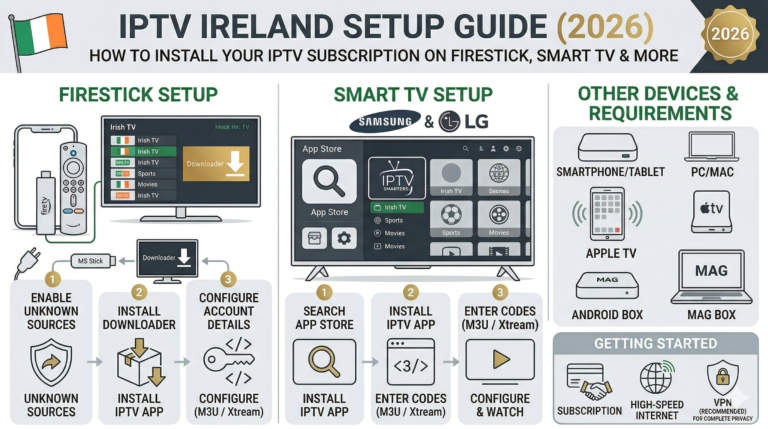
IPTV Ireland Setup Guide — How to Install Your IPTV Subscription on Firestick, Smart TV & More
Whether you’re using an Amazon Firestick, a Samsung Smart TV, an Android phone, or an iPhone, our step-by-step instructions below will walk you through every stage of the installation process.
Don’t have an IPTV subscription yet?
What You Need Before Setting Up IPTV Ireland
Before you begin installing your IPTV subscription, make sure you have the following ready:
- A compatible device — Amazon Firestick, Smart TV (Samsung, LG, Sony), Android phone or tablet, iPhone or iPad, MAG box, or PC/Mac.
- A stable internet connection — minimum 10 Mbps for HD streaming, 25 Mbps recommended for 4K quality.
- Your IPTV login credentials — these are sent via WhatsApp within minutes of subscribing. You’ll receive a username, password, and server URL (Xtream Codes format) or an M3U link.
- An IPTV player app — we recommend IPTV Smarters Pro, TiviMate, or IBO Player Pro depending on your device.
Once you’ve got everything ready, choose your device below and follow the guide.
How to Set Up IPTV on Amazon Firestick
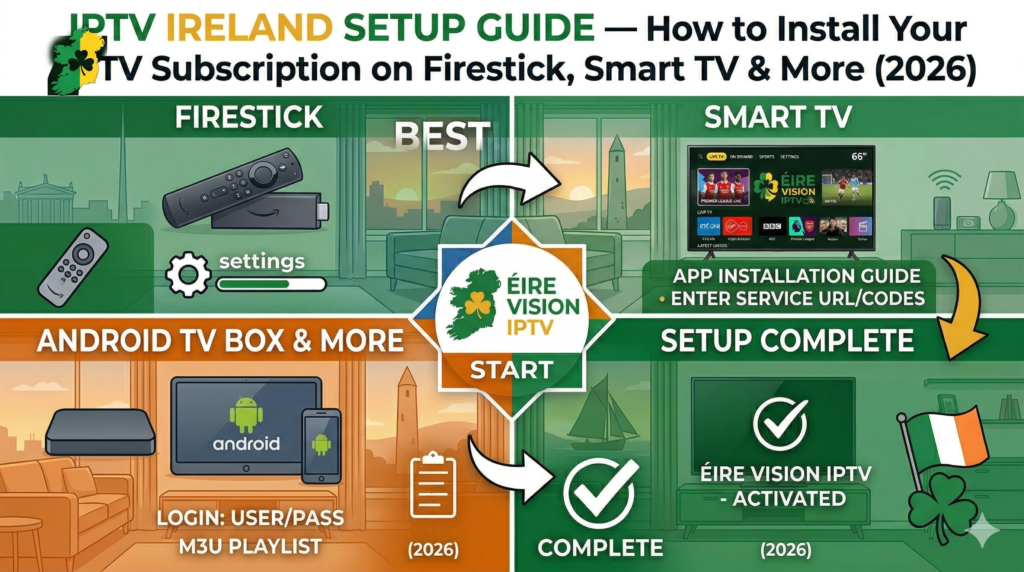
The Amazon Firestick is the most popular device for watching IPTV in Ireland, and for good reason — it’s affordable, portable, and delivers excellent 4K streaming quality. Here’s how to install your IPTV subscription on a Firestick in just a few minutes.
Step 1 — Enable Developer Options
From your Firestick home screen, go to Settings, then select My Fire TV. Tap on Developer Options. If you don’t see this menu, go to About, then click on your Fire TV Stick name seven times until a message confirms that Developer Options has been enabled. Once inside Developer Options, toggle on “Install Unknown Apps” or “Apps from Unknown Sources.”
Step 2 — Install the Downloader App
Return to the Firestick home screen and open the Amazon App Store. Search for “Downloader” by AFTVnews — it’s a free app that allows you to install IPTV applications directly onto your device. Install it and open it.
Step 3 — Download Your IPTV App
Open the Downloader app and type in the URL for your preferred IPTV player. We recommend IPTV Smarters Pro for most users — it’s free, user-friendly, and works perfectly with our IPTV service. Our WhatsApp support team will provide you with the correct download URL when you subscribe. Once the download completes, click Install, then click Done.
Step 4 — Enter Your IPTV Subscription Credentials
Launch the IPTV app from your Firestick’s Apps section. Select “Login with Xtream Codes API” and enter the username, password, and server URL that were sent to you via WhatsApp. Tap Add User and wait for the channels to load.
That’s it — you’re now streaming IPTV on your Firestick. The entire process takes less than five minutes.
How to Set Up IPTV on Samsung & LG Smart TV
If you own a Samsung or LG Smart TV, setting up your subscription is even simpler — no extra hardware needed.
For Samsung Smart TVs
Open the Samsung App Store from your TV’s home screen. Search for “IPTV Smarters Pro” or “IBO Player Pro” and install it. Launch the app, select Xtream Codes login, and enter your IPTV credentials (username, password, and server URL). Your channels will load automatically and you can start watching immediately.
For LG Smart TVs
Navigate to the LG Content Store on your TV. Search for “IBO Player Pro” or “Smart IPTV” and install the app. Open it, and you’ll see a MAC address displayed on screen. Restart the app and all your channels will appear.
How to Set Up IPTV Subscription on Android Devices
Android phones, tablets, and Android TV boxes all work brilliantly with our IPTV service. The setup process is straightforward.
Open the Google Play Store on your Android device. Search for “IPTV Smarters Pro” or “TiviMate” and install the app. If the app isn’t available on the Play Store, our support team will send you a direct download link via WhatsApp. Launch the app and select “Login with Xtream Codes.” Enter your subscription username, password, and server URL. Tap Add User and your channel list will load within seconds.
TiviMate is an excellent choice for Android TV boxes as it offers advanced features like an electronic programme guide (EPG), catch-up TV, and recording capabilities. It provides a premium viewing experience that rivals traditional cable interfaces.
How to Set Up IPTV on iPhone & iPad
Apple users can also enjoy our IPTV subscription on their iPhone or iPad using a free player app.
Open the Apple App Store and search for “Smarters Player Lite” or “IPTV Smarters.” Download and install the app. Launch it, choose “Load Your Playlist or File URL,” and enter the M3U URL provided by our team via WhatsApp. Alternatively, if Xtream Codes login is available in the app, enter your username, password, and server URL directly. Your channels will load and you can start streaming immediately.
For the best experience on iOS devices, make sure your iPhone or iPad is connected to a strong Wi-Fi signal. Mobile data works too, but Wi-Fi delivers more stable 4K streaming.
How to Watch IPTV on PC or Mac
If you prefer watching on your computer, our IPTV subscription works perfectly on both Windows PCs and Mac computers.
Download VLC Media Player from the official website — it’s free and available for both platforms. Open VLC, go to Media (on Windows) or File (on Mac), and select “Open Network Stream.” Paste the M3U URL that was provided with your subscription. Click Play, and your channels will begin streaming.
Alternatively, you can download IPTV Smarters Pro for Windows from the official Smarters website for a more TV-like interface with EPG support and channel categories.
Your Complete Checklist at a Glance
Here’s the whole thing condensed for quick reference:
Before subscribing: Test evening broadband speed, identify your device, plan your connection, order Ethernet cable, research your provider, choose your plan.
During setup: Subscribe and save credentials, connect via Ethernet, update firmware, install the right app, enter credentials carefully, let channels load fully, enable VPN.
First-day testing: Test Irish/UK channels, test sports channels, test on-demand library, optimise TV picture settings, test additional devices.
Optimisation: Build favourites list, organise categories, set parental controls, note support contact, bookmark troubleshooting guide, mark renewal date.
First week: Monitor peak-hour performance, explore the full range, test during a live event, confirm before upgrading.
Tips for the Best IPTV Streaming Experience
Now that your subscription is set up, here are some tips to ensure the smoothest possible streaming experience across Ireland.
Use a wired Ethernet connection whenever possible. While Wi-Fi works perfectly for most users, a wired connection provides more stable and consistent speeds — particularly important during peak evening hours or when streaming live sports in 4K.
Restart your router regularly. Irish broadband providers like Eir, Vodafone, and Virgin Media occasionally experience congestion. A quick router restart can resolve buffering issues and refresh your connection.
Keep your IPTV app updated. App developers regularly release updates that improve stability, fix bugs, and enhance streaming performance. Check for updates in your app store or contact our support team for the latest version.
Clear your app cache periodically. On Firestick, go to Settings, then Applications, then Manage Installed Applications. Select your IPTV app and click “Clear Cache.” This can resolve sluggish performance and loading issues.
Use the built-in VPN. Our IPTV service includes built-in VPN protection, so there’s no need to purchase a separate VPN subscription. This shields your IP address from your Internet Service Provider and prevents throttling.
Need Help Setting Up Your IPTV Subscription? We’re Here for You
If you run into any issues during setup, or if you’d prefer our team to walk you through the process personally, don’t hesitate to reach out.
Not yet subscribed?
Frequently Asked Questions About IPTV Setup
Q: How long does it take to set up IPTV? A: Most users complete the entire setup process in under 5 minutes. Our step-by-step instructions make it simple even if you’ve never used IPTV before.
Q: Which IPTV app is best for Firestick in Ireland? A: We recommend IPTV Smarters Pro for most users. It’s free, easy to use, and fully compatible with our IPTV subscription service. TiviMate is an excellent alternative if you want advanced features like EPG and recording.
Q: Do I need a VPN to use IPTV? A: No. Our IPTV subscription includes built-in VPN technology, so your connection is already protected. There’s no need to purchase a separate VPN service.
Q: What internet speed do I need for IPTV in Ireland? A: A minimum of 10 Mbps is required for HD streaming. For the best 4K experience, we recommend at least 25 Mbps. Our service works with all Irish broadband providers including Eir, Virgin Media, Vodafone, and Sky Broadband.
Q: Can I use my subscription on multiple devices? A: You can install your credentials on multiple devices, but simultaneous streaming is limited to one screen per account. For multi-room viewing, contact us on WhatsApp for discounted additional connections.