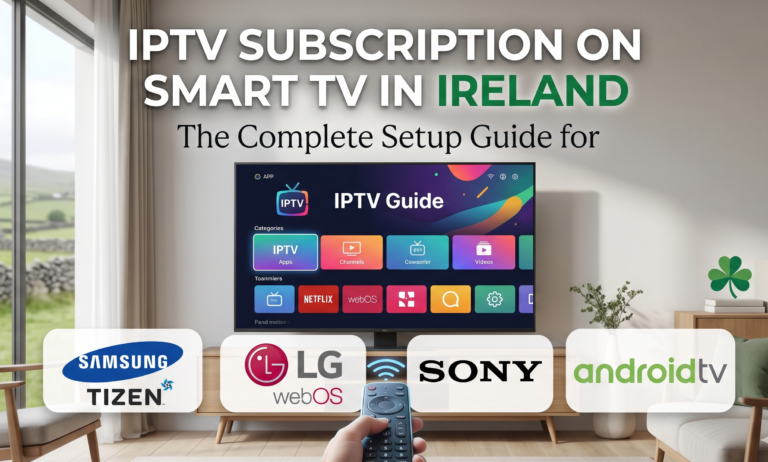
Most Irish households bought a Smart TV in the past five years without ever realising the full potential of what they own. That Samsung in your sitting room, the LG OLED in the bedroom, the Sony Bravia in the kitchen — every one of them can run an IPTV subscription directly without needing a Firestick, Apple TV, or any additional hardware. Yet most owners use their Smart TV exclusively for Netflix and YouTube, paying expensive Sky bills for live TV and sports they could be streaming through the same device.
This guide walks Irish Smart TV owners through everything they need to know about setting up an IPTV subscription directly on their existing television. We’ll cover Samsung’s Tizen platform, LG’s webOS, Sony’s Android TV, and other Smart TV systems — with step-by-step instructions, app recommendations, troubleshooting tips, and practical advice for getting the best possible viewing experience.
Why Use IPTV Directly on Smart TV Instead of a Firestick
Before diving into setup instructions, it’s worth understanding why running IPTV directly on your Smart TV is often the best option for Irish households who already own one.
You eliminate hardware costs entirely. If your Smart TV can run IPTV apps directly, that’s money saved that you can put toward your subscription or anything else.
You eliminate cable clutter. No HDMI device hanging off the back of your TV, no power cable, no extra remote control to lose between the cushions. Your existing TV remote handles everything.
You get a unified interface. Switching between Netflix, your IPTV app, and broadcast TV happens through a single TV remote rather than juggling multiple inputs and remotes.
You benefit from your TV’s built-in features. Smart TVs have evolved significantly — many now include voice control, built-in apps, screen mirroring, and gaming features. Using IPTV through these systems means you benefit from all the TV’s capabilities seamlessly.
The trade-off is that some Smart TVs have older, slower processors that struggle with demanding IPTV apps. If your TV is from 2017 or earlier, performance may be sluggish and a Firestick will provide a noticeably smoother experience. For TVs from 2019 onwards, direct IPTV use is typically excellent.
Samsung Smart TV (Tizen OS) — Complete Setup Guide
Samsung Smart TVs run Tizen OS, which has its own app store called the Samsung Apps Store. Setting up an IPTV subscription on a Samsung TV is straightforward but has some specific quirks to be aware of.
Start by ensuring your Samsung TV is connected to your home network. Press the Home button on your remote and navigate to Settings, then General, then Network, then Open Network Settings. Choose Wireless and connect to your home Wi-Fi, or use Wired if you have an Ethernet cable connected. A wired connection is strongly recommended for the best streaming performance.
Next, you’ll need to install an IPTV app. The Samsung Apps Store has limited IPTV apps available — Smart IPTV (SIPTV) is the most popular option, though there are several alternatives. Press the Home button, navigate to Apps, and search for “Smart IPTV” or simply “IPTV.” Install the app to your TV.
Once installed, open Smart IPTV. The app will display a unique MAC address for your TV. Write this MAC address down — you’ll need it to upload your IPTV Ireland playlist. The MAC address looks something like 00:1A:79:XX:XX:XX.
Now visit the Smart IPTV web portal at siptv.app on your computer or phone. Enter your TV’s MAC address, then upload the M3U playlist URL provided by our team via WhatsApp. The playlist contains all your channel information and links to the streams. Save the configuration.
Return to your Samsung TV and reload the Smart IPTV app. Your channels should now appear, organised into categories. Browse through Live TV, Movies, and Series sections to access everything included in your IPTV Ireland subscription.
This is a small one-time cost paid to the app developer, not to IPTV.
LG Smart TV (webOS) — Complete Setup Guide
LG Smart TVs use webOS, which is one of the most user-friendly Smart TV platforms available. The setup process for IPTV on LG webOS is similar to Samsung but with some differences in app availability and configuration.
Begin by connecting your LG TV to your home network. Press the Settings button (gear icon) on your Magic Remote, navigate to Network, then choose Wi-Fi Connection. Connect to your home network and enter your password. Alternatively, use the Wired connection option if you have an Ethernet cable available.
For app installation, LG’s Content Store offers several IPTV apps. The most popular and reliable options for Irish users are Smart IPTV (the same app available on Samsung), SS IPTV, and IBO Player. Press the Home button, navigate to LG Content Store, and search for your preferred app. Install it to your TV.
The setup process for Smart IPTV on LG follows the same pattern as Samsung — get your TV’s MAC address from the app, upload your M3U playlist via the siptv.app web portal, and reload the app to see your channels.
For SS IPTV (a popular alternative), the setup is slightly different. Open the app and you’ll see a code displayed on screen. Visit the SS IPTV web portal, enter the code, and upload your M3U playlist. The advantage of SS IPTV is that it’s completely free with no one-time payment required.
LG’s Magic Remote with its pointer functionality and voice control makes navigating IPTV apps particularly pleasant. You can point at channels rather than scrolling through long lists, and voice search lets you quickly find specific content.
Sony Smart TV (Android TV/Google TV) — Complete Setup Guide
Sony Smart TVs from 2018 onwards run Android TV, with newer models (2022+) running Google TV — essentially the same platform with an updated interface. The advantage of Android TV is access to the full Google Play Store, which means far more IPTV app options than Samsung or LG.
Start by connecting your Sony TV to your network. Press the Home button, navigate to Settings, then Network and Internet, and connect to your Wi-Fi or Ethernet. Sign in with your Google account when prompted — this is required for Google Play Store access.
For app installation, you have many excellent options on Android TV. IPTV Smarters Pro is the most popular and recommended app for Irish users. TiviMate is another premium option with a beautiful interface. IBO Player Pro offers good performance and reliability. All three are available directly through the Google Play Store on your TV.
Open Google Play Store on your Sony TV, search for “IPTV Smarters Pro” (or your preferred app), and install it. Once installed, open the app and select “Login with Xtream Codes API.” Enter the username, password, and server URL provided by IPTV via WhatsApp. The app will automatically download your channel list and content library.
Android TV’s strength is its smooth performance and intuitive interface. IPTV Smarters Pro on Sony TV provides an experience equivalent to using a dedicated streaming device. The Sony remote’s microphone button enables voice search, making it easy to find specific channels or shows.
Other Smart TV Brands — Hisense, TCL, Panasonic & More
Many Irish households own Smart TVs from brands beyond the big three. Most of these run Android TV (Hisense, TCL, Sharp, Philips), Roku TV (some Hisense and TCL models in Ireland), or proprietary systems (Panasonic My Home Screen).
For Android TV-based brands, follow the Sony setup guide above — the process is identical. Hisense, TCL, Sharp, and Philips Android TVs all support IPTV Smarters Pro through the Google Play Store.
For Roku TVs, IPTV options are more limited because Roku’s app store doesn’t include the most popular IPTV apps. The workaround is to use Roku’s screen mirroring feature with your phone or tablet running an IPTV app, or to add a Firestick to bypass Roku’s limitations.
For Panasonic Smart TVs and other proprietary platforms, app availability varies significantly. Some support Smart IPTV; others have very limited options.
Wired vs Wi-Fi Connection — Which Is Better for IPTV
This is one of the most important decisions for getting the best IPTV experience on your Smart TV. The honest answer: wired Ethernet is significantly better than Wi-Fi for IPTV streaming, and the difference is most noticeable during peak evening hours and live sports.
Ethernet provides consistent, dedicated bandwidth between your router and TV. There’s no interference, no signal degradation, and no competition with other devices for wireless bandwidth. The connection is essentially perfect.
Wi-Fi is convenient but has limitations. Wireless signals weaken with distance and obstacles (walls, furniture). Multiple devices on your network compete for bandwidth. Other Wi-Fi networks in your area cause interference. Bad weather can affect outdoor signal paths to your router.
For most Irish households, the practical solution is running an Ethernet cable to your main TV (the one used for live sports and primary viewing) and using Wi-Fi for secondary devices in other rooms where convenience matters more than absolute reliability.
Run it along the skirting board, behind furniture, or through walls if you’re handy. The improvement in streaming reliability is dramatic and immediate.
If running cable isn’t practical, a Powerline adapter is the next best option. Powerline adapters use your home’s electrical wiring to extend network connectivity. Plug one near your router and another near your TV, connect Ethernet cables to both, and you have a wired-quality connection without running cables across the house.
Picture Quality Settings for IPTV on Smart TV
Many Smart TV owners never adjust their picture settings beyond the defaults, missing significant quality improvements. For IPTV streaming specifically, these settings make a noticeable difference.
Switch your picture mode to “Movie” or “Cinema” rather than “Vivid” or “Sports.” Despite the names, Movie mode produces more accurate colours and better contrast for almost all content.
Disable motion smoothing (also called Motion Plus, TruMotion, or Motionflow depending on your TV brand). Motion smoothing creates the “soap opera effect” that makes films look like cheap TV productions. For sports, some viewers prefer it on; for everything else, turn it off.
Enable Game Mode if you watch sports — counterintuitively, Game Mode reduces input lag and processing delay, which can actually make live sports feel more responsive. Some TVs have a specific Sports mode optimised for this purpose.
Adjust backlight and brightness for your viewing environment. Daytime viewing in a bright room needs higher backlight. Evening viewing in a dimmer room benefits from lower backlight, reduced eye strain, and better contrast.
For 4K content specifically, ensure HDR is enabled in your TV settings. Most modern Smart TVs support HDR10 at minimum, with newer models supporting Dolby Vision for premium content.
Best IPTV Apps for Different Smart TV Brands
Choosing the right IPTV app significantly impacts your viewing experience. Here are the best options for each platform.
For Samsung Tizen TVs, Smart IPTV (SIPTV) is the most popular choice. It’s reliable, well-maintained, and has been the standard for Samsung IPTV for years. SS IPTV is a free alternative if you prefer to avoid the small fee.
For LG webOS TVs, both Smart IPTV and SS IPTV work well. SS IPTV is free, while Smart IPTV requires the same one-time payment as on Samsung. The choice between them comes down to interface preference — both deliver the same content with similar performance.
For Sony Android TV and Google TV, IPTV Smarters Pro is the gold standard. It’s free, well-designed, and updated regularly. IBO Player Pro is a solid alternative with a one-time payment.
For Android TV brands beyond Sony (Hisense, TCL, etc.), the same options as Sony apply — IPTV Smarters Pro, TiviMate, and IBO Player Pro all work identically.
A general note about IPTV apps: stick with established, popular apps from the official app stores. Sideloading random IPTV apps from unknown sources is a security risk.
Troubleshooting Smart TV IPTV Issues
Even with proper setup, occasional issues arise. Here are solutions to the most common Smart TV-specific IPTV problems.
The app keeps crashing. This usually indicates insufficient memory on older Smart TVs. Close other apps running in the background, restart your TV completely (unplug it from power for 30 seconds), and try again. If crashes persist on a TV from 2017 or earlier, you may have reached the limits of your TV’s processing capability — a Firestick would solve this.
Channels load slowly or buffer constantly. This is usually a network issue rather than a TV issue. Switch to Ethernet if you’re using Wi-Fi, enable the built-in VPN in your subscription to prevent ISP throttling, and run a speed test on your TV’s browser to confirm you’re getting adequate bandwidth.
The app shows “Cannot connect to server.” First verify your internet connection is working — try opening Netflix or YouTube to confirm. If those work, the issue is with the IPTV server. Restart the app, restart your TV, and contact our WhatsApp support if the problem persists.
Some channels work but others don’t. This is usually normal — IPTV channels can occasionally have temporary issues with specific streams. Try the channel again in 15–30 minutes. If a channel has been down for hours, message support to confirm.
Picture quality is poor on certain channels. Channel quality varies based on the source feed. Some international channels may stream at lower bitrates than premium UK and Irish channels. This isn’t usually fixable from your end — it’s a characteristic of the specific stream.
Audio is out of sync with video. This happens occasionally on Smart TVs with certain apps. Restart the app, switch to a different channel and back, or restart the TV. Persistent audio sync issues may require switching to a different IPTV app.
Smart TV vs Firestick — When to Choose Which
After all this discussion, when should you actually use your Smart TV directly versus adding a Firestick? Here’s the practical answer.
Use your Smart TV directly if your TV is from 2019 or newer with a reasonably fast processor, you want to minimise hardware and remotes, your TV is a major brand (Samsung, LG, Sony) with good app support, and you don’t need 4K HDR if your TV doesn’t support it natively.
Use a Firestick if your TV is older than 2019 and feels sluggish, your TV brand has limited IPTV app options (Roku, some Panasonic models), you want guaranteed access to the latest IPTV apps and updates, you need 4K HDR streaming on a TV that doesn’t support it, or you want a single setup approach across all the TVs in your house regardless of brand.
For households with multiple TVs of different ages and brands, a hybrid approach often works well — use the Smart TV directly on your newest sitting room TV, and add Firesticks to older TVs in bedrooms and other rooms.
Getting Started with IPTV on Your Smart TV
If you’ve read this far and you’re ready to set up IPTV on your Smart TV, here’s the practical action plan.
First, identify your TV’s brand and platform. Most Samsung TVs are Tizen, most LG TVs are webOS, most Sony and Hisense TVs are Android TV. Check your TV’s manual or settings if you’re unsure.
Subscribe to IPTV by visiting our IPTV Subscription page or messaging us directly on WhatsApp.
For Samsung and LG TVs, we’ll provide your M3U playlist URL. For Android TV, we’ll provide Xtream Codes credentials (server URL, username, password).
Install the recommended IPTV app for your TV brand following the instructions above. Enter your credentials, and you’re streaming within minutes.
Check our troubleshooting guide for self-help solutions, and our setup guide for additional Firestick instructions if you decide to add one. For full service details, see our Terms & Conditions.
Your existing Smart TV is more capable than you realised. Now you’re using its full potential.
Frequently Asked Questions — IPTV Subscription on Smart TV
Q: Will IPTV work on my old Smart TV from 2015? A: It depends on your TV’s processor and app support. Try installing Smart IPTV (Samsung/LG) or check Google Play Store (Android TV) for compatible apps.
SS IPTV is completely free. IPTV Smarters Pro and IBO Player on Android TV are free. TiviMate has free and premium tiers.
Q: Can I use my subscription on multiple Smart TVs in my home? A: A standard subscription supports one screen at a time. For simultaneous viewing on multiple TVs, contact us about multi-connection options through WhatsApp.
Q: Why does my Smart TV need a MAC address for IPTV? A: Apps like Smart IPTV use your TV’s MAC address as a unique identifier to link your playlist. This is similar to how Sky links a subscription to a specific Sky Q box. The MAC address stays the same for the life of your TV.
Q: Is IPTV on Smart TV as good as on a Firestick? A: For modern Smart TVs (2019+), the experience is essentially identical. For older TVs (2017 or earlier), a Firestick will be noticeably faster and smoother. The choice often comes down to personal preference and budget.