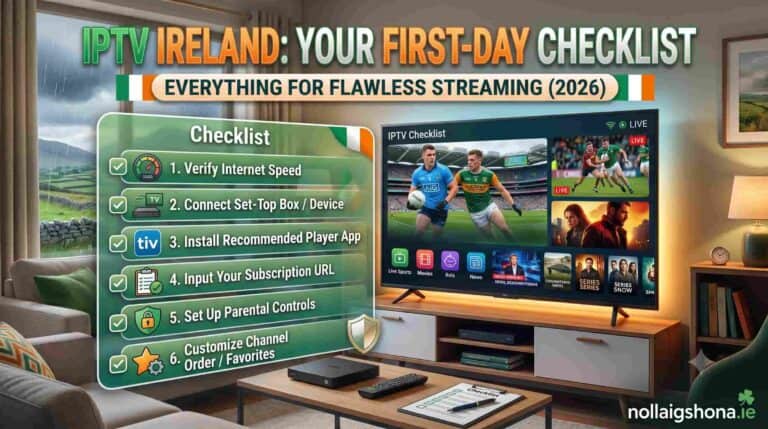
Most people set up IPTV in a rush. They subscribe, fire the app onto the Firestick, punch in the details, and start watching — skipping half a dozen small steps that would have made the whole experience dramatically better. Then they spend the next few weeks fixing problems that never needed to happen in the first place.
Doing it right the first time takes about 30 minutes and saves you weeks of niggling issues. No buffering surprises, no “why won’t this channel load,” no realising three days later that you set it up wrong. Just smooth, sorted streaming from the very first evening.
This is that checklist. Everything to do before you subscribe, during setup, and in the first few days after — laid out in order so you can tick each item off as you go. Print it, bookmark it, or keep it open on your phone while you set up. Follow it properly and your IPTV Ireland experience will be flawless from minute one. Let’s get you sorted the right way.
Before You Subscribe — The Groundwork
Do this part before spending a cent. Getting the foundations right prevents the majority of problems people encounter.
☐ Test your broadband speed at the right time
Run a speed test at speedtest.net — but do it during the evening (8–10pm), not at lunchtime. Your evening speed is what matters, because that’s when you’ll actually be watching and when networks are busiest. You need at least 10 Mbps for HD and 25 Mbps for 4K. If your evening speed falls short, sort your broadband before subscribing to IPTV.
☐ Identify your device and its capabilities
Know what you’re working with. Is your TV a Smart TV from 2019 or later (can run IPTV directly)? Older (needs a Firestick)? Check whether you have a Firestick already, and if so, which model. Knowing your setup in advance means you can prepare the right approach. Our device guide helps you assess this.
☐ Locate your router and plan your connection
Where is your router in relation to your main TV? If they’re close, plan to run an Ethernet cable (the single best thing you can do for streaming reliability). If they’re far apart, consider a Powerline adapter or plan your Wi-Fi setup carefully. Sorting the connection method now prevents buffering later.
☐ Order an Ethernet cable (and adapter if needed)
If you’re using a wired connection (and you should for your main TV), order a Cat6 Ethernet cable long enough to reach from router to TV — €10–15. For a Firestick, also order a USB Ethernet adapter (€12). Having these ready means you can set up properly from day one rather than retrofitting later.
☐ Research your provider properly
Before choosing a provider, verify they’re legitimate. Check for a real website, a physical business presence, responsive support, and genuine reviews on independent forums (Reddit, Boards.ie). Confirm they accept PayPal or card payments (for buyer protection) and that they include a built-in VPN. Avoid lifetime deals and crypto-only providers. Our guide to choosing covers exactly what to look for.
☐ Choose the right plan for your situation
Decide on your plan. If you’re new to IPTV and want to test first, the 1-month plan at €14.99 lets you evaluate before committing. If you’re confident, the 12-month plan at €49.99 gives the best value. Consider whether you need multi-connection access for simultaneous viewing on multiple screens.
During Subscription — Getting Set Up
Now you’re ready to subscribe and configure. Follow these steps in order.
☐ Subscribe and save your credentials safely
Complete your subscription and receive your login credentials via WhatsApp. Save these somewhere accessible and secure — a note on your phone, or written down and kept with your TV remote. You’ll need them for setup and potentially for adding devices later. Note whether you received Xtream Codes (server URL, username, password) or an M3U URL, as different apps use different formats.
☐ Connect your device via Ethernet (or optimise Wi-Fi)
Before installing anything, sort your connection. Plug your Ethernet cable from router to device (using the adapter for Firestick). If using Wi-Fi, connect to the 5 GHz network if available (faster, less interference) and ensure your device is as close to the router as practical. A solid connection is the foundation of everything.
☐ Update your device firmware first
Before installing your IPTV app, update your device’s software. On Firestick: Settings → My Fire TV → About → Check for Updates. On Smart TV: check the support/software update section. Starting with updated firmware prevents compatibility issues and crashes down the line.
☐ Install the right app for your device
Install the appropriate IPTV app. For Firestick and Android TV, IPTV Smarters Pro is the reliable choice (or TiviMate for a premium experience). For Samsung/LG Smart TVs, use Smart IPTV or SS IPTV. For iOS, IPTV Smarters Pro or IBO Player Pro. Only install from official app stores or verified URLs from your provider. Our apps guide helps you choose.
☐ Enter your credentials carefully
Open the app and enter your credentials exactly as provided — they’re case-sensitive, so match capitalisation precisely. For Xtream Codes, choose “Login with Xtream Codes API” and enter the server URL, username, and password. For M3U, paste the URL. Double-check for typos before submitting; most login failures are simply mistyped credentials.
☐ Let the channel list fully load
After logging in, the app downloads your channel list and content library. This takes 1–3 minutes on first launch. Let it complete fully before doing anything else. Rushing this can cause incomplete loading. Once done, you’ll see your channels organised into categories.
☐ Enable the built-in VPN
If your subscription includes a built-in VPN (quality ones do), enable it now. This prevents ISP throttling during peak hours — a major cause of evening buffering in Ireland. If you’re unsure how to enable it for your setup, ask your provider’s support. Getting this on from the start means you never experience throttling-related issues.
First-Day Testing — Confirm Everything Works
Don’t just start watching randomly. Test methodically to confirm everything’s working and catch any issues early.
☐ Test your core Irish and UK channels
Check the channels you’ll watch most. Load RTÉ One, RTÉ2, TG4, BBC One, and ITV. Each should load within 3–5 seconds and play in crisp HD or 4K without buffering. These are your daily channels — confirm they work perfectly before anything else.
☐ Test the main sports channels
Load Sky Sports Main Event, Sky Sports Premier League, and TNT Sports. Sports channels are the most demanding, so if they load cleanly and play smoothly, everything else will too. If there’s a live match on, watch a few minutes to check for buffering or pixelation during motion.
☐ Test the on-demand library
Browse the VOD section and play a few titles across different genres. Confirm that films and series load and play properly. Try 5–10 random titles to check the library is properly maintained and functional, not padded with broken links.
☐ Check picture quality settings on your TV
Optimise your TV’s picture settings for streaming. Set the picture mode to “Movie” or “Cinema” (more accurate than “Vivid” or “Sports”), and disable motion smoothing (the “soap opera effect” that makes films look cheap). For 4K content, ensure HDR is enabled. These settings genuinely improve how everything looks.
☐ Test on any additional devices
If you’ll use IPTV on multiple devices (phone, tablet, second TV), set them up and test each one. Confirm your credentials work across all of them and the experience is consistent. Remember that a standard subscription streams one device at a time unless you have multi-connection access.
Optimisation — Make It Yours
These final steps transform a functional setup into a genuinely pleasant daily experience.
☐ Build your favourites list
This is the step most people skip and later regret. Mark your most-watched channels as favourites — RTÉ One, RTÉ2, TG4, BBC One, Sky Sports Main Event, and whatever else you watch regularly. Once set up, you access these with a couple of button presses instead of scrolling through 18,000 channels. Spend five minutes here and thank yourself every evening.
☐ Organise your categories
Familiarise yourself with how channels are grouped — Irish, UK, Sports, Movies, Kids, International. Knowing where things are makes navigation quick. Some apps let you reorder or hide categories you don’t use, decluttering the interface.
☐ Set up parental controls if you have kids
If children will use the service, configure parental controls. On Firestick, set a PIN in the parental controls settings. In apps like IBO Player Pro, use the built-in channel locking. Consider creating a kids-only favourites list with just children’s channels. Our families guide covers child safety in detail.
☐ Note your provider’s support contact
Save your provider’s WhatsApp support number somewhere handy. If anything goes wrong — a channel stops working, you need to add a device, you have a question — you’ll want quick access to support. Our team is available 24/7 at WhatsApp.
☐ Bookmark the troubleshooting guide
Save a link to a good troubleshooting guide for the inevitable day something acts up. Our buffering fix guide covers the common issues and their solutions, so you can often sort minor problems yourself in minutes.
☐ Mark your renewal date
Note when your subscription expires. Set a calendar reminder for a few days before, so you can renew without any interruption to your service. Since quality providers don’t auto-renew, you stay in control — but you need to remember to renew before the date.
The First Week — Settling In
A few things to do over the first week to ensure everything stays smooth.
☐ Monitor peak-hour performance
Over your first few evenings, pay attention to how the service performs during peak hours (8–10pm). If it’s flawless, brilliant. If you notice occasional buffering, ensure your VPN is enabled and consider switching to Ethernet if you’re on Wi-Fi. Catching and addressing any issues early means a smooth long-term experience.
☐ Explore the full channel range
Spend some time discovering what’s available beyond your usual channels. The international sections, niche sports, documentary channels, and the depth of the on-demand library often contain content you didn’t know you wanted. This is where IPTV Ireland’s value beyond basic TV really shows.
☐ Test the service during a live event
If there’s a big match or event on during your first week, watch it. Major live events are the real test of any IPTV service. If your provider handles a big Premier League match or GAA game smoothly, you’ve chosen well.
☐ Confirm you’re happy before upgrading
If you started on a 1-month plan to test, use this first week to decide whether to upgrade to the annual plan. If the service has performed well across your core channels, sports, and peak hours, upgrading to the 12-month plan at €49.99 locks in the best value.
Your Complete Checklist at a Glance
Here’s the whole thing condensed for quick reference:
Before subscribing: Test evening broadband speed, identify your device, plan your connection, order Ethernet cable, research your provider, choose your plan.
During setup: Subscribe and save credentials, connect via Ethernet, update firmware, install the right app, enter credentials carefully, let channels load fully, enable VPN.
First-day testing: Test Irish/UK channels, test sports channels, test on-demand library, optimise TV picture settings, test additional devices.
Optimisation: Build favourites list, organise categories, set parental controls, note support contact, bookmark troubleshooting guide, mark renewal date.
First week: Monitor peak-hour performance, explore the full range, test during a live event, confirm before upgrading.
Tick every box and your IPTV Ireland setup will be flawless — no avoidable problems, no frustration, just brilliant television from the first evening onward.
Ready to Start? Do It Right From Day One
Now that you have the complete checklist, setting up IPTV Ireland properly is straightforward. Everything you need to do, in order, for a flawless experience.
Start by visiting our IPTV Subscription page to choose your plan. The 1-month plan at €14.99 is perfect for testing (following the checklist), while the 12-month plan at €49.99 gives the best value once you’re confident. Message our WhatsApp team to subscribe — we’ll send your credentials in minutes and help you work through the setup checklist step by step if you’d like guidance.
For detailed setup instructions, see our Firestick and Smart TV guide. For choosing the right app, check our apps comparison. For broadband advice, read our Irish broadband guide. For beginners, our beginners guide explains everything simply. For questions, visit our contact page or read our Terms & Conditions.
Follow the checklist, and you’ll never be one of those people fixing avoidable problems weeks later. Flawless from the first minute — that’s the goal, and now you know exactly how to achieve it.
Frequently Asked Questions — IPTV Ireland Setup Checklist
Q: What’s the most important step in setting up IPTV Ireland?
A: Using a wired Ethernet connection for your main TV. It’s the single biggest factor in eliminating buffering and ensuring smooth streaming, especially for live sport. A €10 cable and (for Firestick) a €12 adapter make a dramatic difference over Wi-Fi. Combined with enabling the built-in VPN, it prevents the vast majority of streaming issues.
Q: How long does it take to set up IPTV Ireland properly?
A: About 30 minutes if you follow the full checklist — including connecting Ethernet, updating firmware, installing the app, entering credentials, testing channels, and building a favourites list. The basic “install and watch” takes 10 minutes, but the extra 20 minutes of proper setup prevents weeks of niggling issues.
Q: Should I test my broadband before subscribing to IPTV Ireland?
A: Yes, absolutely. Test at speedtest.net during evening hours (8–10pm) when you’ll actually be watching. You need 10+ Mbps for HD and 25+ Mbps for 4K. If your evening speed falls short, address your broadband before subscribing — it’s the foundation everything else depends on.
Q: Do I need to update my Firestick before installing IPTV?
A: It’s strongly recommended. Updating your Firestick firmware (Settings → My Fire TV → About → Check for Updates) before installing your IPTV app prevents compatibility issues and crashes. Starting with updated software means a smoother, more stable experience from the beginning.
Q: What should I test on the first day of my IPTV Ireland subscription?
A: Test your core Irish and UK channels (RTÉ, BBC, ITV), the main sports channels (Sky Sports, TNT Sports), and several on-demand titles across genres. Watch during peak hours to check for buffering, and if there’s a live match on, test that too. Confirming everything works early catches any issues while you can still address them easily.