That spinning circle in the middle of your screen during the 89th minute of a Dublin derby. The freeze-frame right as the try is being scored in a Six Nations decider. The pixelated mess that was supposed to be the season finale you’ve waited eight weeks for.
Buffering is the single most frustrating thing about streaming. And if you’ve landed on this page, you’re probably experiencing it right now with your IPTV subscription and you want it sorted. Not tomorrow. Not after reading a 3,000-word essay about internet protocols. Now.
Good news. In about 90% of cases, IPTV buffering in Ireland has a fixable cause that you can sort yourself in under ten minutes. This guide starts with the quickest fixes and works through to the less common problems. Try each step in order — most people solve it within the first three.
The 60-Second Fix That Works Most Often
Before you do anything else, restart your router. Not the IPTV app. Not your TV. Your actual broadband router.
Walk over to it, unplug it from power, wait 30 seconds, plug it back in, and wait 2–3 minutes for it to fully reconnect. Then try your IPTV subscription again.
This fixes buffering roughly 40% of the time. Routers accumulate memory leaks, connection errors, and cached data over days and weeks of continuous operation. Irish broadband providers like Eir, Virgin Media, and Vodafone supply routers that are decent but not brilliant — they need a restart regularly, the same way your phone occasionally needs a reboot.
If you haven’t restarted your router in the past week, do it now. I’ll wait.
Better? If yes, you’re done. Bookmark this page for next time and enjoy your evening. If no, keep reading.
Check Your Actual Internet Speed
Not the speed your ISP promises. Not the speed on your contract. The speed you’re actually getting right now, on the device where IPTV is buffering.
Here’s what you need for smooth IPTV streaming:
- 10 Mbps minimum for standard HD (720p/1080i)
- 25 Mbps recommended for Full HD (1080p)
- 50 Mbps ideal for 4K Ultra HD
- Add 10–15 Mbps per additional device streaming simultaneously
How to test properly
On your phone or laptop (connected to the same Wi-Fi as your TV), go to speedtest.net and run a test. Note the download speed.
If you’re getting 25+ Mbps, your internet speed isn’t the problem. Move to the next section.
If you’re getting 10–25 Mbps, you can stream in HD but 4K will buffer. Reduce stream quality in your IPTV app settings from Auto/4K to 1080p or 720p.
If you’re getting under 10 Mbps, your connection is too slow for reliable streaming. This could be a temporary ISP issue (test again in an hour), a Wi-Fi problem (covered below), or a genuine broadband speed limitation that requires an ISP upgrade.
The speed test trick most people miss
Run the test at the time you actually experience buffering. If IPTV works fine at 2pm but buffers at 8pm, your ISP is likely throttling streaming traffic during peak hours. A speed test at 2pm showing 80 Mbps means nothing if you’re getting 8 Mbps at 8pm when you actually want to watch.
Switch From Wi-Fi to Ethernet — The Single Biggest Upgrade
I’ll keep banging this drum until every IPTV user in Ireland hears it. Wired Ethernet is dramatically better than Wi-Fi for streaming. Not slightly better. Dramatically.
Here’s why Wi-Fi causes buffering specifically for IPTV:
Signal interference. Your neighbour’s Wi-Fi, Bluetooth devices, microwave ovens, baby monitors, and even thick stone walls (common in older Irish houses) all degrade Wi-Fi signal quality. Every evening when your neighbours get home and fire up their own routers, interference increases and your streaming quality drops.
Bandwidth sharing. Every device on your Wi-Fi is fighting for the same wireless bandwidth. The kids’ tablets, your partner’s laptop, smart home devices, phones doing background updates — they’re all eating into the bandwidth your TV needs for smooth IPTV.
Distance from router. Wi-Fi signal strength drops dramatically with distance and obstacles. If your router is in the hallway and your TV is two rooms away through two walls, you might be getting a fraction of your actual broadband speed.
The fix costs €10
Buy a Cat6 Ethernet cable long enough to reach from your router to your TV. A 10-metre cable costs €10–15 from Amazon, Harvey Norman, or Currys. Run it along the skirting board, behind furniture, or under a rug.
Plug one end into your router, the other into your TV or Firestick (using a USB Ethernet adapter for Firestick, approximately €12). Done.
The improvement is immediate and substantial. Most IPTV buffering issues disappear completely when you switch to Ethernet.
Can’t run a cable? Try Powerline adapters
Powerline adapters use your home’s existing electrical wiring to create a wired network connection between rooms. Plug one adapter near your router, connect it via Ethernet. Plug another near your TV, connect that via Ethernet. Your electrical wiring carries the network signal between them.
A decent Powerline adapter kit costs €40–60 and works well in most Irish homes. Performance is better than Wi-Fi but not quite as good as a direct Ethernet run. TP-Link and Devolo make the most reliable options available from Irish retailers.
ISP Throttling — The Problem Your Provider Won’t Admit To
Here’s a scenario that drives Irish IPTV users mad. Your speed test shows 100 Mbps. Netflix works fine. YouTube loads instantly. But your IPTV subscription buffers every evening between 7pm and 11pm.
That’s ISP throttling. Your broadband provider is deliberately slowing down specific types of streaming traffic during peak hours. They won’t admit they do it. But they do.
How to confirm throttling
Run a speed test at speedtest.net during the buffering — note the result. Then enable the built-in VPN included with your IPTV Ireland subscription and try streaming again. If the buffering stops with the VPN on, your ISP was throttling your IPTV traffic.
Why does this work? A VPN encrypts your internet traffic so your ISP can’t tell what type of content you’re streaming. They can see you’re using bandwidth, but they can’t identify it as IPTV and therefore can’t selectively throttle it.
How to enable the VPN
Your IPTV Ireland subscription includes built-in VPN technology. Depending on your app and setup, this may be enabled automatically or may need activating in your IPTV app settings. If you’re unsure, message our WhatsApp support team and they’ll walk you through it for your specific device.
This is one of the biggest advantages of choosing an IPTV provider that includes VPN protection — many don’t, and their users are left buying separate VPN subscriptions at €5–10 per month just to get reliable evening streaming.
Device-Specific Fixes
Different devices have different quirks. Here are targeted fixes for the most common IPTV devices in Irish households.
Amazon Firestick buffering fixes
Clear the app cache. Go to Settings → Applications → Manage Installed Applications → [your IPTV app] → Clear Cache. This removes accumulated data that can slow performance. Don’t hit “Clear Data” unless you want to re-enter your login credentials.
Close background apps. Firesticks have limited memory. If you’ve been using Netflix, Prime Video, YouTube, and your IPTV app in the same session, background apps consume RAM. Hold the Home button and select “Close All Apps” before opening IPTV.
Check for Firestick updates. Go to Settings → My Fire TV → About → Check for Updates. Outdated firmware can cause streaming issues. Install any available updates and restart.
Reduce stream quality. In your IPTV app settings, change video output from Auto or 4K to 720p or 1080p. The Firestick Lite in particular struggles with 4K streams — it’s an HD device being asked to do 4K work.
Smart TV buffering fixes
Restart the TV properly. Not just standby — actually unplug it from the wall for 60 seconds. Smart TVs accumulate background processes and memory leaks that a standby cycle doesn’t clear.
Update your TV’s firmware. Check Settings → Support → Software Update (Samsung), Settings → General → About This TV → Check for Updates (LG), or Settings → Device Preferences → About → System Update (Sony/Android TV).
Close unnecessary apps. Smart TVs from 2019 and earlier have limited processing power. If Netflix, YouTube, and a web browser are all running in the background alongside your IPTV app, performance suffers.
Phone and tablet buffering fixes
Switch to 5 GHz Wi-Fi. Most modern routers broadcast two networks — 2.4 GHz and 5 GHz. The 5 GHz band is faster with less interference but has shorter range. If you’re within a few metres of your router, connect to the 5 GHz network for better streaming performance.
Close other apps. Background apps consume bandwidth and processing power. Close everything you’re not actively using before launching your IPTV app.
Router Settings That Make a Real Difference
Your ISP-provided router has default settings that aren’t optimised for streaming. A few changes can meaningfully improve IPTV performance.
Switch your Wi-Fi channel
If you live in an apartment building or terraced housing (common across Dublin, Cork, Galway, and every Irish town), dozens of Wi-Fi networks are competing on the same channels. Log into your router’s admin panel (usually 192.168.1.1 in your browser) and change the Wi-Fi channel to the least congested option. An app like WiFi Analyzer (free on Android) shows you which channels are crowded in your area.
Enable QoS (Quality of Service)
QoS settings let you prioritise streaming traffic over other internet activity. Some Irish ISP routers support this — check your router’s admin panel for a QoS or Traffic Management section. Set streaming or your IPTV device’s IP address as high priority.
Change DNS servers
Your ISP’s default DNS servers can be slow. Switching to Google DNS (8.8.8.8 and 8.8.4.4) or Cloudflare DNS (1.1.1.1 and 1.0.0.1) can improve connection speed to IPTV servers. Change this in your router’s WAN/Internet settings so it applies to all devices automatically.
Consider upgrading your router
ISP-provided routers in Ireland are adequate but rarely impressive. If you’ve had the same Eir or Vodafone router for 3+ years, a dedicated Wi-Fi 6 router (€80–150 from any electronics retailer) will provide stronger signal, better range, and improved performance for multiple simultaneous streams. TP-Link Archer AX series and ASUS RT-AX series are solid, affordable choices.
When the Problem Isn’t on Your End
Sometimes buffering isn’t caused by your internet, your device, or your router. It’s a server-side issue with the IPTV service itself.
How to tell
If a specific channel buffers but others work perfectly, the issue is likely with that particular stream rather than your connection. Try watching a different channel in the same category — if it works fine, the problem is isolated to one feed.
If everything buffers simultaneously, check whether your internet is working for other services. Open Netflix or YouTube — if they work normally, the IPTV server may be experiencing temporary load.
Major sporting events create peak demand on IPTV servers. Champions League finals, All-Ireland finals, and major boxing events generate massive simultaneous viewership. Brief buffering during these events can occur even on perfectly configured setups. Usually resolves within minutes as servers balance the load.
What to do
Contact our WhatsApp support team. We can confirm whether there’s a known server issue, switch your account to an alternative server if available, or diagnose the problem remotely. Response time is typically under five minutes, 24/7.
The Nuclear Option — Full Reset
If you’ve tried everything above and buffering persists, a full reset of your IPTV app sometimes clears deep-seated issues.
Step 1: Uninstall your IPTV app completely (not just clear cache — fully remove it).
Step 2: Restart your device (Firestick, Smart TV, phone — whatever you’re using).
Step 3: Reinstall the IPTV app from scratch.
Step 4: Enter your IPTV Ireland credentials fresh and let the channel list download completely.
This process takes about 10 minutes and resolves stubborn issues caused by corrupted app data, outdated playlists, or configuration errors that accumulated over time.
If the nuclear option doesn’t work, contact our support team. At that point, the issue likely requires server-side investigation or a credential refresh on our end.
Preventing Future Buffering
Once you’ve fixed the immediate problem, these habits prevent it from returning.
Restart your router weekly. Set a reminder for Sunday morning or whenever works. A weekly restart keeps your router running optimally. Some routers have an auto-restart schedule in their settings — enable it if available.
Keep your IPTV app updated. App developers regularly release performance improvements and bug fixes. Check for updates monthly.
Use Ethernet for your main TV. Yes, I’m saying it again. If you only take one piece of advice from this entire guide, make it this one. A €10 cable eliminates more buffering than any other single fix.
Keep VPN enabled during peak hours. Even if you don’t experience throttling consistently, enabling VPN during the 7pm–11pm window as a precaution costs nothing and prevents potential issues before they start.
Monitor your broadband speed monthly. Run a speed test at speedtest.net during peak evening hours once a month. If speeds have dropped significantly from your contracted rate, contact your ISP — you may be entitled to a speed upgrade or need a line check.
Quick-Reference Troubleshooting Checklist
Clip this, screenshot it, or bookmark it. Next time your IPTV subscription buffers, work through this list top to bottom:
- Restart your router (unplug 30 seconds, replug, wait 3 minutes)
- Run a speed test at the time of buffering — confirm 25+ Mbps
- Switch to Ethernet if currently on Wi-Fi
- Enable the built-in VPN to bypass ISP throttling
- Clear IPTV app cache on your device
- Close all background apps
- Reduce stream quality from 4K to 1080p
- Check if the issue is one channel or all channels
- Update your IPTV app and device firmware
- Full app uninstall, device restart, fresh reinstall
If you reach step 10 and still have issues, message our WhatsApp support team. We’ll sort it out. That’s what we’re here for, 24 hours a day, 7 days a week.
For more detailed setup advice, check our Firestick and Smart TV setup guide or our Smart TV specific guide. For general questions about our service, visit our IPTV Subscription page or our contact page.
Now go enjoy your evening without that spinning circle ruining it.
Frequently Asked Questions — IPTV Subscription Buffering in Ireland
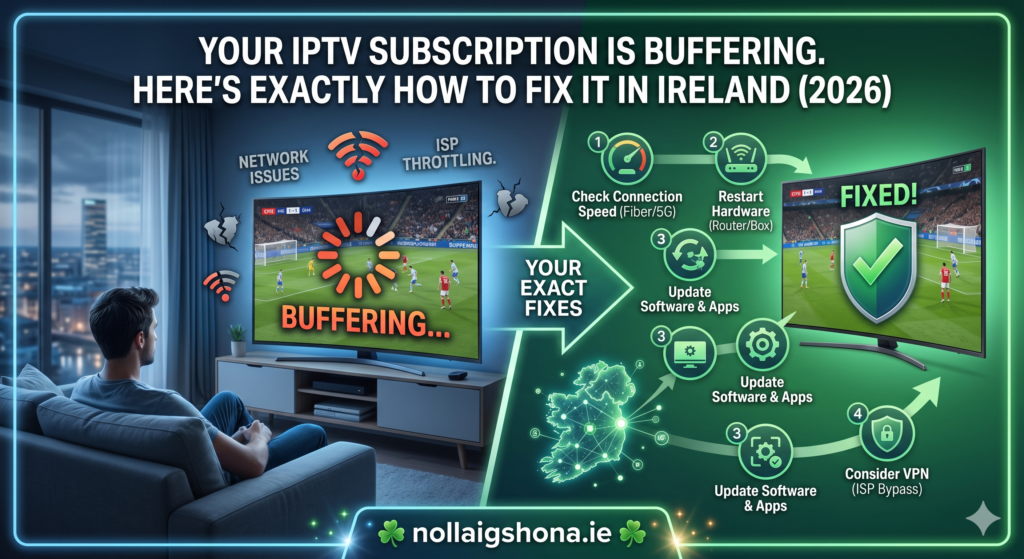
Q: Why does my IPTV buffer only in the evenings? A: Almost certainly ISP throttling. Irish broadband providers throttle streaming traffic during peak hours (7pm–11pm) when network demand is highest. Enable the built-in VPN included with your IPTV Ireland subscription — it encrypts your traffic so your ISP can’t identify and throttle it.
Q: Is 10 Mbps enough for IPTV Ireland? A: 10 Mbps is the minimum for HD streaming on a single device. For reliable 4K streaming or multiple simultaneous streams, you need 25–50 Mbps. Most Irish broadband plans deliver 100+ Mbps, so the issue is usually Wi-Fi degradation rather than actual broadband speed.
Q: Will a Firestick buffer less than my Smart TV? A: Modern Firestick 4K devices have fast processors optimised for streaming, so they often perform better than Smart TVs from 2018 or earlier. For TVs from 2020 onwards, performance is comparable. If your Smart TV struggles, adding a Firestick (€45–55) is the most cost-effective upgrade.
Q: Does the built-in VPN slow down my IPTV connection? A: Minimally. The encryption adds a tiny amount of overhead, but the benefit of preventing ISP throttling far outweighs any minor speed reduction. Most users experience faster streaming with VPN enabled during peak hours because it stops their ISP from deliberately slowing them down.
Q: My IPTV works fine on my phone but buffers on my TV. Why? A: Your phone is likely connected to a different Wi-Fi band (5 GHz) or is closer to the router. Your TV may be on the 2.4 GHz band or further away with walls between it and the router. Switch your TV to Ethernet, or move your router closer. If your TV supports 5 GHz Wi-Fi, connect it to that band instead.